
When buying a used iPhone, buyers are easily deceived by parameters like "high refresh rate", "True Tone support", and "resolution"—sellers will exaggerate parameters to cover up screen defects or use "fake parameters" to pass off inferior screens. In fact, the core of a used screen is not the parameter values, but "parameter authenticity + function matching". Avoid 4 common mistakes to choose a truly reliable screen.
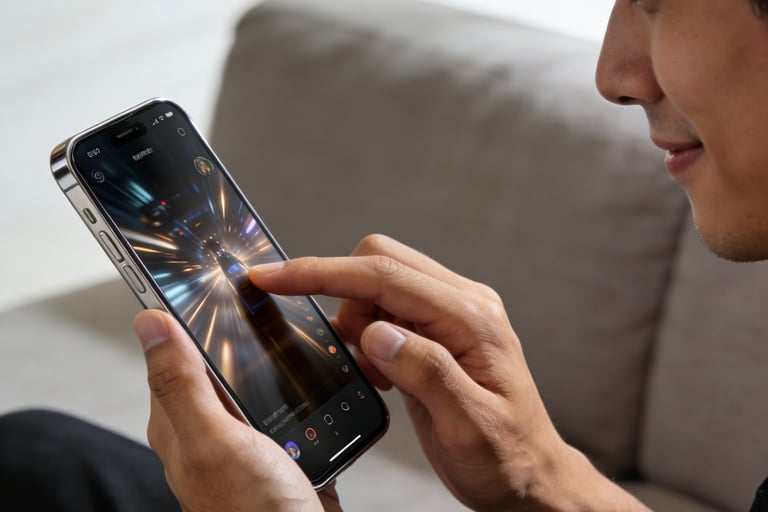
Mistake 1: "Displaying 120Hz Means It’s a High-Refresh Screen" - Beware of "Fake High-Refresh" Assembled Screens
Many buyers think "displaying 120Hz in settings means it’s a real high-refresh screen", but in the second-hand market, many assembled screens modify display parameters through software, with an actual refresh rate of only 60Hz and poor touch experience.
Truth: Only iPhone 13 Pro and above Pro series support adaptive high refresh rate (10-120Hz); non-Pro series do not have high refresh function themselves; even for Pro series, assembled screens may "display high refresh rate but not actually support it".
Identification Steps (3 Steps to Expose Fake High-Refresh):
1. Visual Experience Test: Open WeChat Moments or webpages and slide up and down quickly for 30 seconds—real high-refresh screens slide smoothly without motion blur, while fake high-refresh (60Hz pretending to be 120Hz) will have obvious lag, especially when switching pages quickly;
2. Tool Verification: Download the "Refresh Rate Analyzer" APP and observe the real-time refresh rate when sliding the screen—real high-refresh will fluctuate between 80-120Hz, while fake high-refresh will remain fixed at 60Hz;
3. Extreme Scenario Test: Open a large game (e.g., Honor of Kings), set it to high frame rate mode, and shoot the screen sliding with another phone (slow-motion mode)—real high-refresh screens have no blurry motion blur, while fake high-refresh will have obvious residual images.
Pitfall Avoidance Script: "You said this is a high-refresh screen. I need to test the real-time refresh rate with an APP. If it doesn’t actually fluctuate up to 120Hz, it’s a fake high-refresh screen. Either reduce the price or I won’t buy it."
Mistake 2: "Having a True Tone Switch Means It’s an Original Screen" - Decode the "Fake True Tone" Scam
True Tone display is an important feature of original screens, but many assembled screens add a "True Tone switch" without real ambient light sensing matching function, which is "fake True Tone" with poor display effect and easy discoloration.
Truth: The True Tone of original screens works with "hardware + software" to accurately adjust color temperature according to ambient light; the fake True Tone of assembled screens is only "warm/cold color switching" without gradient process and cannot automatically adapt to ambient light.
Identification Steps (2 Steps to Distinguish True/False True Tone):
1. Gradient Test: After enabling True Tone, slowly cover the ambient light sensor at the top of the screen (notch area) with your hand and observe the color temperature change—original screens will warm up slowly with natural color temperature transition; fake True Tone will suddenly switch to warm tone without gradient process, or even no response when covered;
2. Ambient Light Adaptation Test: Move the phone from indoors to the window (under natural light), then back to indoors—original screens will automatically adjust color temperature according to ambient light intensity (cooler under natural light, warmer indoors); fake True Tone will maintain a fixed color temperature or have minimal adjustment range, mismatching ambient light.
Pitfall Avoidance Reminder: If the test shows fake True Tone, don’t compromise even if the seller says "it doesn’t affect use"—fake True Tone screens are mostly assembled screens with short lifespan and easy display discoloration, making them hard to resell later.
Mistake 3: "Higher Resolution Means a Better Screen" - Used Screens Prioritize "Display Consistency"
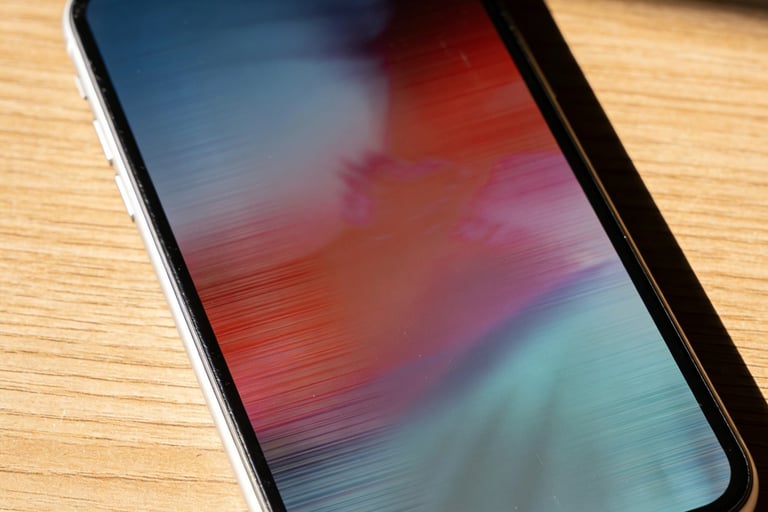
Many buyers are obsessed with parameters like "2K resolution" and "Super Retina", but the resolution parameters of used screens may be modified by software, and the actual display effect is even worse than original screens with lower resolution but no faults.
Truth: The core display indicators of used screens are "no discoloration, no bright spots, uniform brightness", not just resolution values—even if assembled screens display high resolution, they may have problems like bluish tint, yellowish tint, or uneven brightness, and the experience is far worse than original screens with matching resolution but normal functions.
Identification Steps (3 Steps to Judge Display Quality):
1. Color Restoration Test: Open a high-definition portrait photo (with natural skin tone) and observe if the skin tone is reddish, yellowish, or bluish—original screens restore skin tone realistically, while assembled screens (especially low-cost ones) generally have color distortion;
2. Brightness Uniformity Test: Set to 50% and 100% brightness, display a pure white background, and observe if the screen has local dark corners, bright spots, or uneven brightness—high-quality screens (original/first-tier third-party) have uniform brightness distribution, while low-quality screens will have obvious dark areas;
3. Text Clarity Test: Open "Font" in phone settings, switch between different font sizes (from smallest to largest), and observe if the text edges are sharp—original screens have no blurriness or jagged edges, while assembled screens have blurred text edges, which are more obvious when enlarged.
Pitfall Avoidance Script: "I don’t care about resolution parameters. I just need no discoloration, uniform brightness, and clear text. If there are these problems during the test now, the price needs to be renegotiated."
Mistake 4: "No Scratches Mean a New Screen" - Hidden Aging Is More Fatal Than Scratches
Buyers often take "no scratches" as the standard for high-quality screens, but many scratch-free screens may have hidden problems like backlight aging and cable wear, with a much shorter service life than screens with slight scratches but no aging.
Truth: "Hidden aging" of used screens (such as backlight attenuation and cable oxidation) is more dangerous than surface scratches—scratches can be covered by screen protectors, while aging problems will gradually worsen, eventually leading to screen failure.
Identification Steps (2 Steps to Check for Hidden Aging):
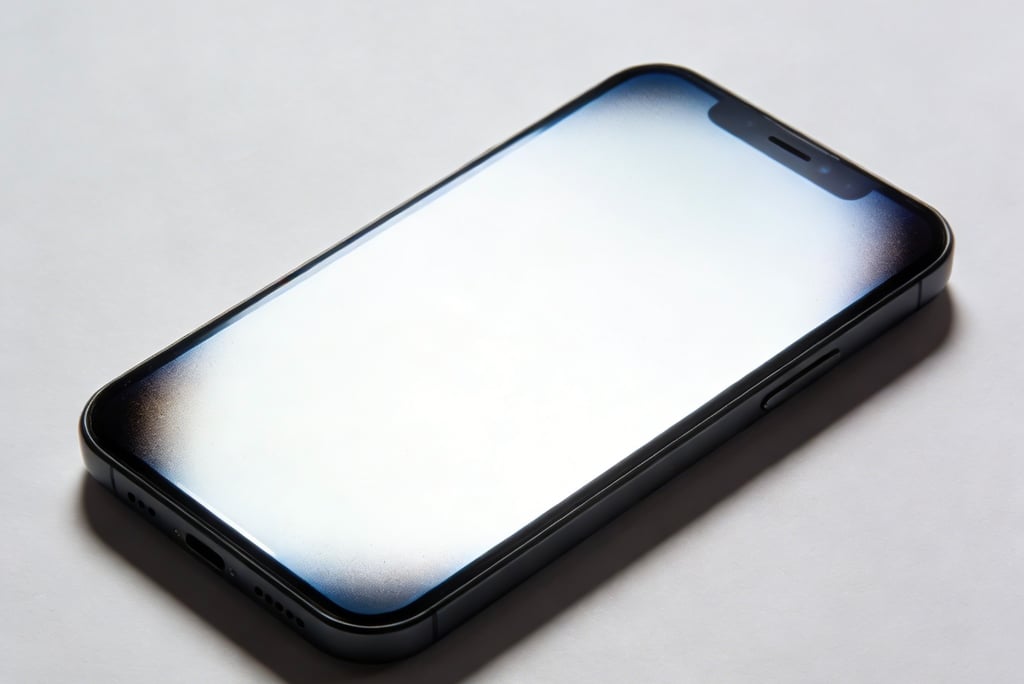
1. Backlight Attenuation Test: Set to maximum brightness, display a pure white background, and compare the brightness between the center and edges of the screen—if the edge brightness is significantly lower than the center, or there is a "cloudy" feeling locally, it means the backlight is aging;
2. Cable Wear Test: Quickly switch between apps like Camera, Video, and Games (10 times continuously) and observe if the screen flickers, has momentary blackouts, or display delays—if these occur, it means the cable is worn and prone to failure later.
Pitfall Avoidance Strategy: If the screen has slight superficial scratches (no tactile feel) but no aging or faults, you can buy it after appropriate price negotiation (less than 10% discount compared to perfect screens); if the screen has no scratches but hidden aging, give up directly—the subsequent repair cost is far higher than scratch repair.
