
When used iPhones have screen issues such as touch failure, display abnormalities, or flickering, it’s not always necessary to replace the screen—some problems stem from non-hardware issues like system bugs, loose cables, or incorrect settings, which can be fixed with precise troubleshooting and simple operations. Mastering the classification and identification of screen faults, self-test methods, and low-cost repair skills can avoid wasting money on unnecessary screen replacements and quickly restore normal screen usage.
Classification and Core Causes of Common Used iPhone Screen Faults
(Identify the Root Cause First)
Screen faults are mainly divided into "hardware faults" and "non-hardware faults", with vastly different handling methods. It is necessary to distinguish them accurately first:
Touch Abnormalities
Common Symptoms: Screen unresponsiveness, no click feedback, touch drift, edge failure
Core Causes (Non-Hardware): System lag, incorrect touch settings, overly thick/damaged screen protector
Core Causes (Hardware): Damaged touch layer, loose cables, water corrosion on the screen
Repair Difficulty: Non-hardware: Low; Hardware: Medium-High
Display Abnormalities
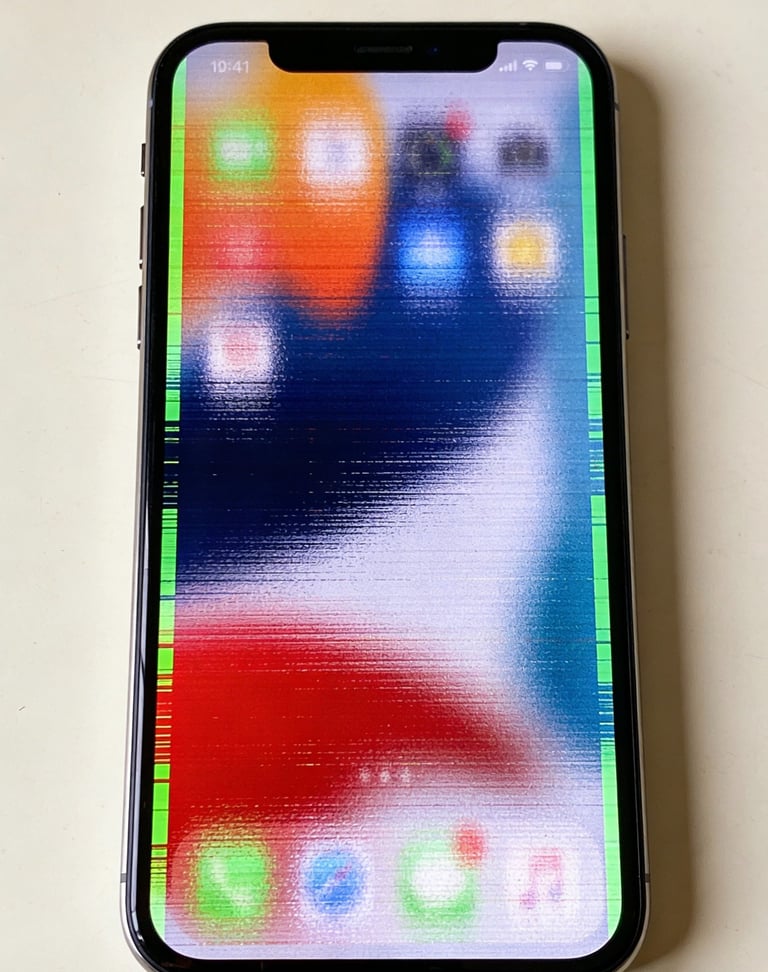
Common Symptoms: Screen discoloration, uneven brightness, dark corners, light spots, flickering
Core Causes (Non-Hardware): Color filters enabled, True Tone abnormalities, system version bugs
Core Causes (Hardware): Damaged display layer, backlight aging, screen liquid ingress, motherboard power supply failure
Repair Difficulty: Non-hardware: Low; Hardware: High
Function Failure
Common Symptoms: True Tone inoperable, 3D Touch unresponsive, Face ID failure
Core Causes (Non-Hardware): Function not enabled, system not updated, sensor blocked
Core Causes (Hardware): Damaged screen sensor, broken cable, incompatible non-original screen
Repair Difficulty: Non-hardware: Low; Hardware: Medium
Appearance Issues
Common Symptoms: Screen scratches, minor cracks, oleophobic coating peeling
Core Causes (Non-Hardware): None (pure physical damage)
Core Causes (Hardware): Outer glass wear, oleophobic coating aging
Repair Difficulty: Low-Medium
Core Judgment Logic: First eliminate non-hardware issues through "restart + settings reset". If the fault persists, it is a hardware fault (requiring repair or screen replacement).
Non-Hardware Faults: 3-Step Self-Test + Low-Cost Repair
(No Disassembly, Do It Yourself)
For non-hardware faults caused by the system, settings, or cables, follow the "simple to complex" order of operations with a repair success rate of over 80%:
1. Basic Troubleshooting: 1-Minute Quick Fix (Priority Try)
Restart the Phone: Press and hold the power button + volume down button (iPhone X and above) or only the power button (iPhone 8 and below), slide to power off and restart. This can resolve 90% of temporary touch/display abnormalities caused by system lag;
Remove Screen Protector/Phone Case: If touch is unresponsive or edges fail, it may be due to an overly thick screen protector (>0.3mm), peeling protector edges, or the phone case squeezing the screen. Test after removal;
Clean the Screen: Wipe the screen with a microfiber cloth (avoid stains and sweat affecting touch), especially the screen edges (prone to dust accumulation causing poor touch);
Check Settings:
① Disable Color Filters: Settings-Accessibility-Color Filters, ensure it is turned off (enabling may cause discoloration);
② Reset Brightness Settings: Settings-Display & Brightness, disable "Reduce White Point" and "Night Shift", adjust to standard brightness for testing;
③ Enable True Tone: If True Tone fails, first confirm Settings-Display & Brightness-True Tone is enabled, and the phone is not in a low-temperature environment (<10℃ will temporarily disable it).
2. Advanced Troubleshooting: System-Level Repair (When Basic Operations Fail)
Update the System: Settings-General-Software Update, upgrade to the latest iOS version (older versions may have touch/display bugs, such as flickering issues in some iOS 15 versions);
Reset All Settings: Settings-General-Transfer or Reset iPhone-Reset-Reset All Settings (no data loss), which can resolve touch drift and True Tone failure caused by incorrect settings;
Factory Reset (Use Cautiously):
① Back up data (iCloud or computer);
② Settings-General-Transfer or Reset iPhone-Erase All Content and Settings;
③ Test if the fault disappears after restoration (suitable for faults caused by severe system bugs).
3. Loose Cable Troubleshooting (Simple Offline Operation, Proceed with Caution)
Used iPhones may have loose screen cables due to transportation or drops. For offline purchases, you can try:
Operation Steps:
① Turn off the phone power, gently lift the screen edge with a professional suction cup (no need for full disassembly, lift about 1cm);
② Locate the screen cable interfaces (3 small interfaces on the motherboard, corresponding to display, touch, and sensor);
③ Gently press the cables with a plastic pry tool to ensure full insertion (avoid metal tools to prevent short circuits);
④ Reattach the screen and test if the fault is resolved;
Notes: Users without disassembly experience are advised to seek professional repair shop services to avoid damaging cables or the screen.
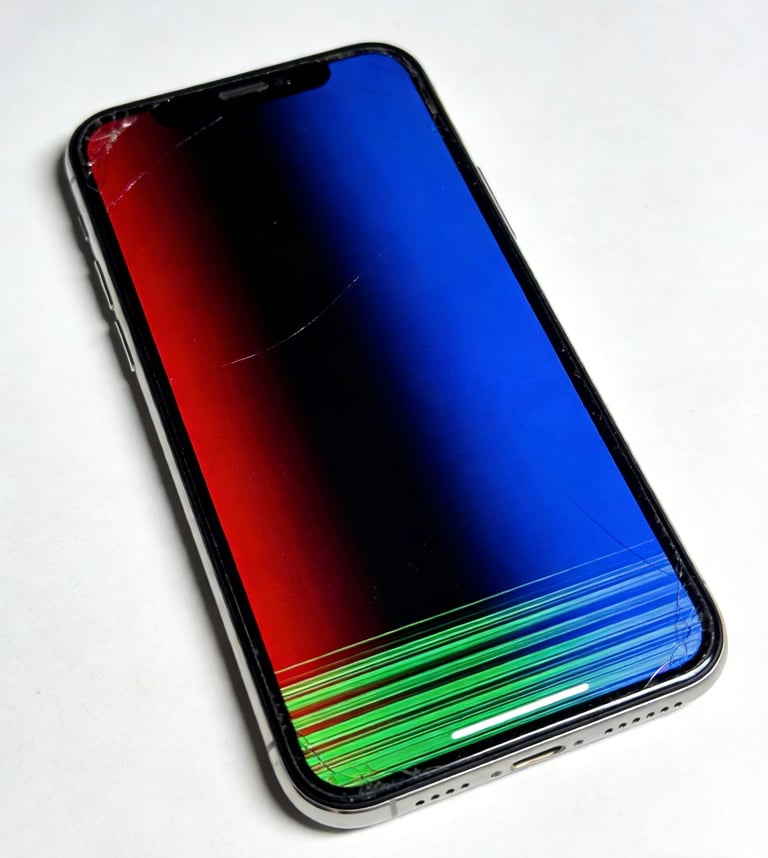
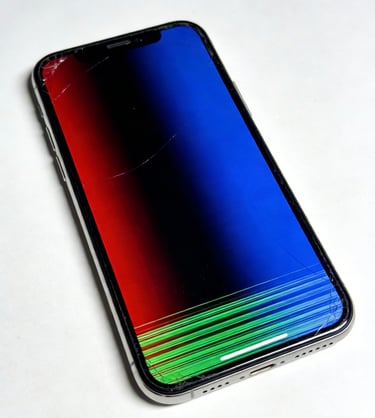
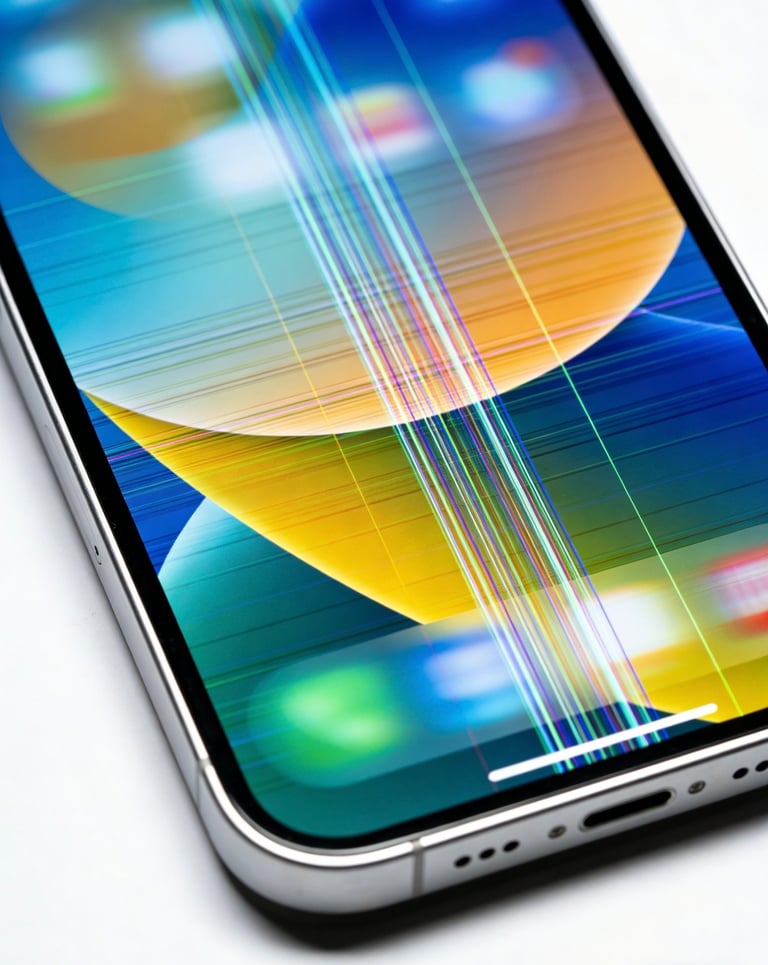
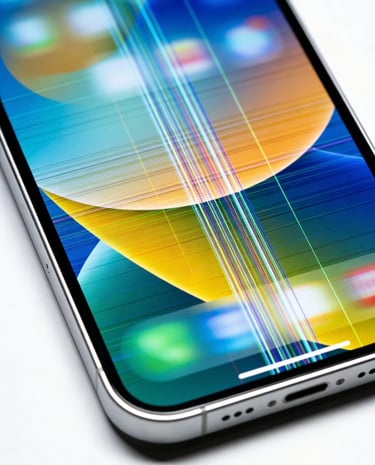
Hardware Faults: Accurate Judgment + Reasonable Handling
(Avoid Blind Screen Replacement)
If the fault persists after the above operations, it can be determined as a hardware fault. Choose the handling plan according to the fault type:
1. Damaged Touch Layer (Unresponsiveness, Drift)
Judgment Method: Unresponsiveness in fixed areas or random pointer drift during sliding, excluding screen protector and setting issues;
Handling Plan:
① Minor Unresponsiveness (only small edge areas): Temporarily use "AssistiveTouch" (Settings-Accessibility-Touch-AssistiveTouch) as a substitute, which does not affect daily use;
② Severe Unresponsiveness (core area failure): Need to replace the screen assembly (original screen or first-tier brand third-party screen, refer to Tweet 27 for selection);
Cost Reference: Original screen replacement 800-1800 RMB, first-tier third-party screen 500-1000 RMB.
2. Display Layer/Backlight Faults (Discoloration, Dark Corners, Flickering)
Judgment Method: Fixed screen discoloration (e.g., overall bluish/yellowish), obvious dark corners at the screen edges, flickering when brightness is set to medium-high;
Handling Plan:
① Minor Dark Corners (no visual impact): Can be used normally without replacement;
② Severe Discoloration/Flickering: Must replace the screen (no repair possible for backlight aging/damaged display layer);
Notes: Avoid using screens with severe flickering, as long-term viewing may damage eyesight.
3. Outer Glass Damage (Scratches, Cracks)
Judgment Method: Only outer glass is damaged, no touch failure or display abnormalities (no liquid seepage when touching the damaged area);
Handling Plan:
① Minor Scratches: Gently wipe with toothpaste (small amount) + soft cloth (only for superficial scratches) or cover with a tempered film;
② Obvious Cracks/Damage: Replace the outer glass (cost 200-500 RMB, 50% cheaper than screen assembly replacement), but choose a repair shop with good lamination technology (to avoid subsequent dust ingress);
Pitfall Reminder: If touch abnormalities occur after outer glass replacement, it is likely that the touch layer was damaged during lamination. Request the repair shop to rework.
4. Screen Liquid Ingress/Corrosion (Display Abnormalities, Touch Failure)
Judgment Method: Watermarks or colored spots inside the screen, or intermittent faults (liquid not fully dried);
Handling Plan:
① Emergency Treatment: Turn off the phone immediately, wrap it in desiccant (avoid hair dryer heating, high temperature accelerates corrosion), and let it stand for 24 hours;
② Professional Treatment: If the fault persists, take it to a repair shop for disassembly and cleaning of corroded areas, and replace damaged cables (cost 300-800 RMB);
③ Severe Corrosion: Both the screen assembly and motherboard may be damaged. If the repair cost is too high, it is recommended to replace the phone directly.
Emergency Handling and Daily Prevention
(Reduce Fault Losses)
1. Emergency Skills for Sudden Faults
Touch Failure: Enable AssistiveTouch to temporarily replace physical operations; enable "Voice Control" (Settings-Accessibility-Voice Control) to operate the phone via voice commands;
Display Abnormalities: Adjust to low brightness (reduce eye irritation), avoid watching videos or prolonged use;
Screen Cracks: Immediately apply a tempered film (prevent crack expansion), avoid pressing the damaged area (may cause internal screen damage).
2. Daily Usage Prevention Measures
Avoid Drops/Squeezing: Wear a shockproof phone case (style with a frame higher than the screen), avoid dropping the phone face down;
Keep Away from Liquids/High Temperatures: Do not use the phone in the bathroom or rain, avoid playing large games while charging (high temperature accelerates screen aging);
Choose High-Quality Screen Protectors: Use 0.1-0.2mm thick tempered films (overly thick affects touch), avoid low-quality protectors (prone to peeling and scratching the oleophobic coating);
Regular Inspections: Check screen cables every 3 months (for offline purchase users) to avoid faults caused by loosening.
